Manage Giver Numbers
If your Church assigns numbers to people that make donations to the Church, you can use the software to keep track of the number, alongside the Giver's contact information. Use the Manage Giver Numbers screen to Assign Giver Numbers and Change or Remove a Giver Number. With this screen, you can also reassign numbers from year to year, keep a history of numbers assigned to Givers, and print a list of Giver numbers. Although this screen is focused primarily on providing you with a way to assign Giver numbers, you can also use this screen to establish if a Giver is giving as a family, if a different name is to print on a statement, and other features discussed below.
Note:
Giver #s are no longer required by Church Windows. If your Church does not use physical envelopes or giver numbers in your actual daily operations, you do not need to use them in the software. You can still enter, keep track of, and print Reports, Labels, and Statements for Givers without assigning them numbers.
To access the Manage Giver Numbers screen:
- Click Givers in the Button Bar at the top of the screen
- Click the Manage #'sbutton that appears below
- The Manage Numbers window will appear:
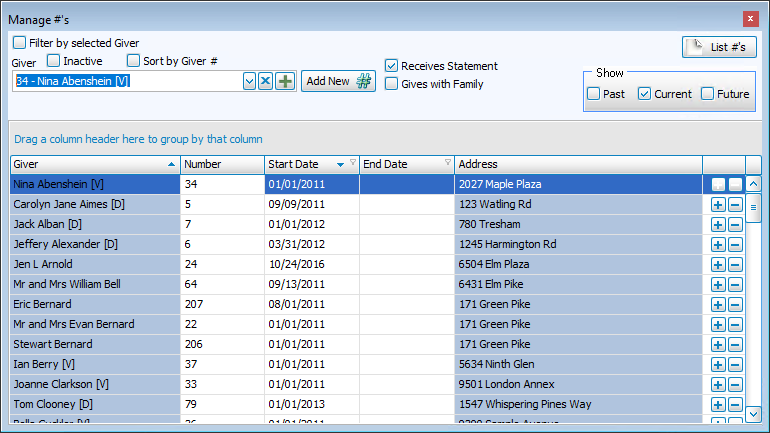
From Manage Numbers, you can:
- Assign Giver Numbers
- Change or Remove a Giver Number
- List #s
- Past, Current, & Future Giver Numbers
-
Receives Statement
-
Giving as a Family or Giving Separately
- Set any person, group, or family with an individual Giver Number.
- Set to show a person giving with their family, therefore using the Giver Number of the family.
- Click the
 dropdown button and choose the desired Giver name.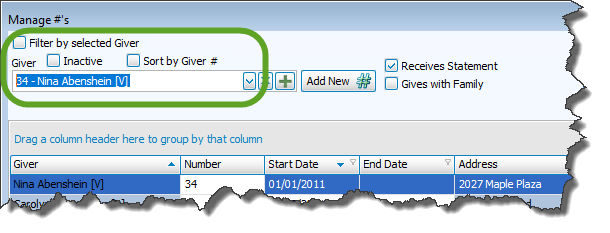
- Then proceed to the steps of either Giving Separately or Giving with Family:
 Giving Separately
- Make sure that the
 checkmark from the Gives with Family box has been removed:
- Click the Add New # button:

- Enter the number and start date:
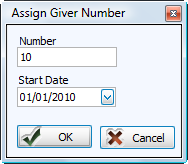
- Click the OK button and the item will be highlighted in the list below.
Giving with Family- Place a checkmark in the Gives with Family box:

- Press Yes to make the change, or No to refrain from making any changes.
- If you do not get a message at all, your change was made successfully.
- Once the Go to family button appears, you have successfully added the individual to the family to which they belong.
- The list on the left side of the Manage Givers screen will show a blue box for those Givers you have assigned as Gives with Family (and they will have the same Giver Number, if one is assigned).
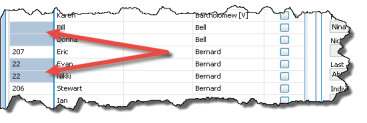
- If needed, you can now enter the Giver Number that the family will share (if one has not already been assigned), use either:
- Manage Giver Numbers
- Click the Add New # button:
- Enter the number and start date:
- Click the OK button and the item will be highlighted in the list below.
- Manage Givers
- Click the Go to family button
- Type the desired number in the empty Current Giver # box on the Giver # tab.
- You can now assign other numbers or close the window.
Note:
If a Giver already had a giving number assigned, you will get the following message. If you press Yes, the Giver will no longer have the giving number previously assigned: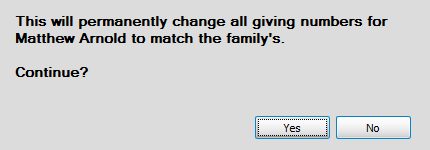
OR
- Make sure that the
If your Church is accustomed to assigning a number to anyone who makes donations to the Church, you can add a number to the record of a Giver.
If you have determined to change or remove the Giver number from the record of a Giver.
If you need to print a report of your assigned numbers and/or unassigned numbers, click List Giver #s in the top right corner of the screen.
In the upper right corner of the Manage Giver Numbers screen, you can specify what Giver Numbers the screen should display.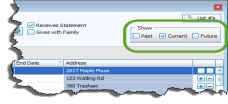
Place a checkmark next to any or all of the desired boxes.
|
Past: |
When checked, the Manage Giver Numbers screen will show you Giver numbers that have been assigned in previous years and have expired. |
|
Current: |
When checked, the Manage Giver Numbers screen will show you Giver numbers that have been assigned in the current year and have not yet expired. |
|
Future: |
When checked, the Manage Giver Numbers screen will show you Giver numbers that have been assigned to start on a date later than today. |
You must place a  checkmark in this box if the selected Giver is supposed to receive Donation Statements. If there is no checkmark in this box, the software will not be able to print a statement for the selected Giver.
These instructions focus on the following two ways that you can Assign Giver Numbers within one family:
Make your changes using the Manage Giver Numbers screen and the following instructions.
